
Select Job
 Reference Contents > Jobs and Estimating > Select Job
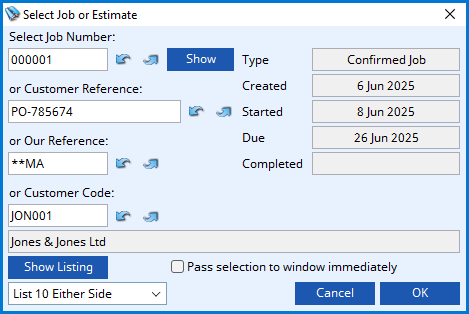
This window enables you to select an existing Estimate or Job.
You can enter a Job number, Customer reference, Additional reference or Customer code to find the desired document. When passing out of each of the fields the system will find the closest matching Job record to the data entered. You can click on the Show Listing button to build a list of all jobs in the system controlled by the selection you make in the dropdown list below the button. You can also use the Show button to view the Job or Estimate Details window.
|
Field |
Description |
|---|---|
|
Job number |
Jobs. Job code number = jst(MCDJOBS,’-6N0P0′). {JOBFILE.JOBCODE char 6} |
|
Customer reference |
Jobs. Customer reference. {JOBFILE.JOBCREF char 20} |
|
Additional reference |
Jobs. Additional user reference. {JOBFILE.JOBAREF char 6} |
|
Customer code |
Jobs. Customer code. {JOBFILE.JOBCUSC char 6} |
|
Customer name |
Customers. Customer company name. {CUSFILE.CUSCNAM char 40} |
|
Type |
Jobs. Released flag (Estimate when not true). {JOBFILE.JOBRELF boolean} |
|
Created date |
Jobs. Date job created. {JOBFILE.JOBDATE date date1980} |
|
Started date |
Jobs. Date job started. {JOBFILE.JOBDATS date date1980} |
|
Due date |
Jobs. Date job due for completion. {JOBFILE.JOBDUED date date1980} |
|
Completed date |
Jobs. Date job completed. {JOBFILE.JOBDATC date date1980} |
|
Pass selection to window immediately |
Check to cause the selection to be immediately reflected on the target window. This option is not present on all uses of this window. |
|
Explode Kit Items |
Check to show kit items exploded in the document. This option is not present on all uses of this window. |
|
List Selection Options |
Choose a selection for the listing. |
 TIP: Normally, when the same part is applied to consecutive line items any part extra texts (individual or standard) are suppressed so the first line only contains them. This is to reduce unnecessary duplication. However, this normal behaviour can be prevented with the user Option optSOPartTextDupl set to 1. Extra texts are then repetitively printed. If this option is set the effect will apply to all customer documents including Sales Orders, Jobs and Invoices.
|
Button |
Action |
|---|---|
|
Show |
Click to open the Job or Estimate Details window. |
|
Show Listing |
Click to show a list of estimates and jobs based on the selection below. The Jobs and Estimates List window will open. |
|
Cancel |
Aborts the process currently in session. The keyboard equivalent is the Esc key for Windows computers and Command-.(full stop or period) for the Mac. |
|
OK or Print |
Confirms your Job selection. When being used for printing a document, right-click to change the report destination. |
Unlocking a locked order
If you select an order that another user currently has open, you are shown a message telling you the record is locked. Normally you can only wait for the other user to release it.
From v6.0008, nominated users are additionally offered an Unlock button on that message. Unlocking releases the record so it can be opened. The flow is three steps: you are told the record is locked and offered the Unlock button, you confirm that you want to unlock it, and the lock is then released so the order can be selected.
The button appears only for users listed in the relevant system option, as a comma-delimited list of User IDs. Use the option matching the document type: optJobUnlock for Jobs and Estimates.
 WARNING: Only unlock an order if you are certain it is not genuinely in use. Unlocking a record that another user is actively editing risks their work being lost or the two sets of changes conflicting. The intended use is recovering an order left locked after a crash or an unclean exit — it is a cleaner alternative to re-uniting missing relatives.
| See also: – |
Compiled in Program Version 5.10. Help data last modified 11 Nov 2012 04:03:00.00. Class wJobOrderno last modified 17 Oct 2017 04:29:54.
Reference Contents > Jobs and Estimating > Select Job